
Production Panel in SharpeSoft Estimator
Updated: 12 hours ago
When you work at the Detail level, you have two options for entering production amounts. You can enter a production amount in the Production Panel first and then fill in the individual detail items in the table, or you can go directly to the detail table, enter your items and the Production Panel will automatically fill in depending on what is entered in the table.
However, when entering your job detail, there will be many times you already know the expected production a crew can generate in a given period. As an example, you might have a paving crew that is capable of laying 2,000 square feet of flatwork per day. Enter that amount in the panel's Production Rate field and then enter your crew in the main Detail Table. The system will automatically enter the number of days needed for this crew to complete the total quantity and will generate a bid price based on the production amount, overall quantity, average work day length and the hourly crew cost.

You cannot enter data directly into the Labor Calculation field, nor into any field highlighted in green. The Labor Calculation and Average Day Length display your settings in the Bid-Item Work Week (which is initially loaded from the Job Work Week window and the Company Default Work Week) and the Hourly Crew Cost (or other selected performance indicator) is calculated using rates entered in the Labor and Equipment Tables.
If the item has a different workweek than the current job default workweek, you can double-click on the Average Day Length field to open the Bid Item Work Week window for that particular item. Average day lengths that differ from the default will be highlighted in red.

If you want to change an amount currently displayed in any one of the first four fields in the Production Panel, click in that field, then type in the number you want. Because the fields in the Production Panel are related, changing an amount in one field will affect amounts shown in the other fields. If you want to start over, that is "zero out" your amounts and start from the beginning, simply type 0 in any of the first four fields of the Production Panel. This will change all the fields to zero and you can begin entering again.
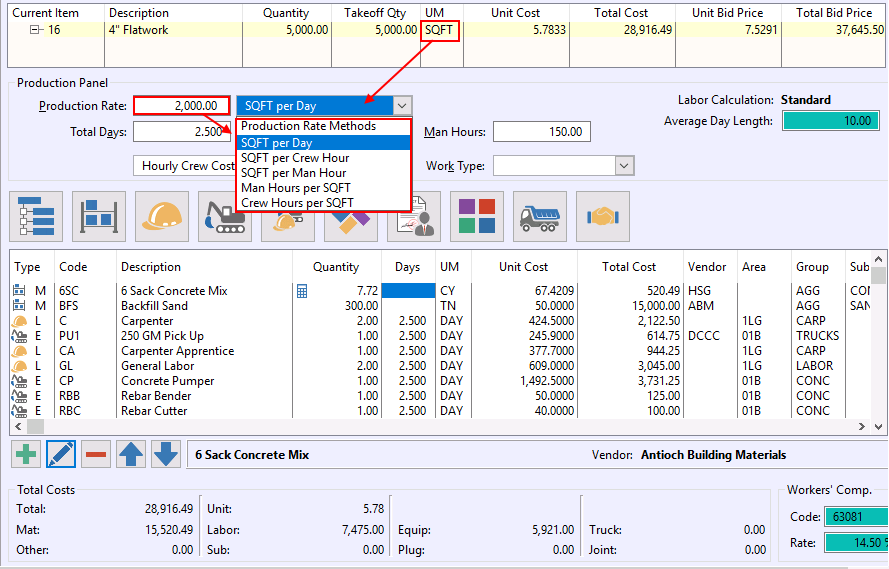
In the Production Rate field enter the amount (based on the item unit of measure) that can be completed in one day or one hour (use the drop list arrow next to the per Day/Hour field to select either 'Day' or 'Hour'). The unit of measurement used in the Production Rate is determined by what was entered in the parent item. Users can switch between bidding by day or by hour by either clicking directly on the Days heading in the Detail View, or by going to Options > Bid by Hour.

When you enter an amount in the Production Rate field, the other fields in Production Panel will automatically be filled in based on the total item quantity (see the Quantity column in the Bid Item Display Panel at the top of the window) divided by the amount which can be completed in one day.
You may have a laborer (such as a foreman) who will not be working as many days on this item as the rest of the crew. For example, he may only be working half the time when compared to the rest of the crew. To accommodate his work schedule, in the main table change the days for the foreman to half those of the rest of the crew. Once you have done this, whenever you change any fields in the Production Panel, the system will keep that 50% ratio for the foreman. The same is true for adjusting quantities set by the production rate.
Conclusion
Getting started with SharpeSoft is a breeze. Whether you are looking to create a new job or add one, SharpeSoft has got your back. We have the tools and expertise necessary to help you make it happen without breaking a sweat.
You can continue on to other helpful Fast Trax articles found in the Blog section. To learn more about this particular subject, consult your system Help manual, or just give us a call and we’ll be glad to walk you through it.
Comments